
GeoJSON 面
GeoJSON Polygon
你将学到什么
- GeoJsonDataSource.load 加载 GeoJSON 面数据
- 统一设置 stroke / fill / strokeWidth
- scene.pick 点击 Entity 修改 polygon.material
- 封装
changeMaterial批量改色
效果说明
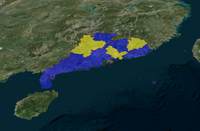
加载广东省 GeoJSON,半透明蓝色填充;点击某一区域后该区域变为黄色半透明。
核心概念
GeoJsonDataSource
js
const dataSource = await Cesium.GeoJsonDataSource.load(url, {
    stroke: Cesium.Color.RED.withAlpha(0.5),
    fill: Cesium.Color.BLUE.withAlpha(0.5),
    strokeWidth: 3,
});
viewer.dataSources.add(dataSource);
viewer.flyTo(dataSource);
加载后每个 Feature 对应一个 Entity,面要素带 polygon 图形。
点击改色
js
viewer.screenSpaceEventHandler.setInputAction((event) => {
    const picked = viewer.scene.pick(event.position);
    if (Cesium.defined(picked) && picked.id) {
        picked.id.polygon.material = Cesium.Color.YELLOW.withAlpha(0.5);
    }
}, Cesium.ScreenSpaceEventType.LEFT_CLICK);
picked.id 即 Entity;polygon.material 接受 Color 或 MaterialProperty。
批量换肤
js
dataSource.changeMaterial = (params) => {
    dataSource.entities.values.forEach(entity => {
        entity.polygon.material = Cesium.Color.fromCssColorString(params.fillColor)
            .withAlpha(params.fillOpacity);
        entity.polygon.outlineColor = ...;
    });
};
实现步骤
- 初始化 Viewer 与底图
setGeoPolygon(viewer, geojsonUrl)封装 load + add + changeMaterialviewer.flyTo(dataSource)定位到数据范围- 注册 LEFT_CLICK,pick 后改 material
代码要点
js
async function setGeoPolygon(viewer, source, params = {}) {
    const dataSource = await Cesium.GeoJsonDataSource.load(source, {
        stroke: Cesium.Color.fromCssColorString(params.strokeColor || 'red').withAlpha(0.5),
        fill: Cesium.Color.fromCssColorString(params.fillColor || 'blue').withAlpha(0.5),
        strokeWidth: params.strokeWidth || 3,
    });
    viewer.dataSources.add(dataSource);
    return dataSource;
}
大数据量
省级以上面数据 Entity 尚可;全国区县建议 Primitive + 自定义着色 或 3D Tiles 矢量瓦片。
源码
完整源码见 GitHub。
小结
基础功能 · Cesium.js · 8/19