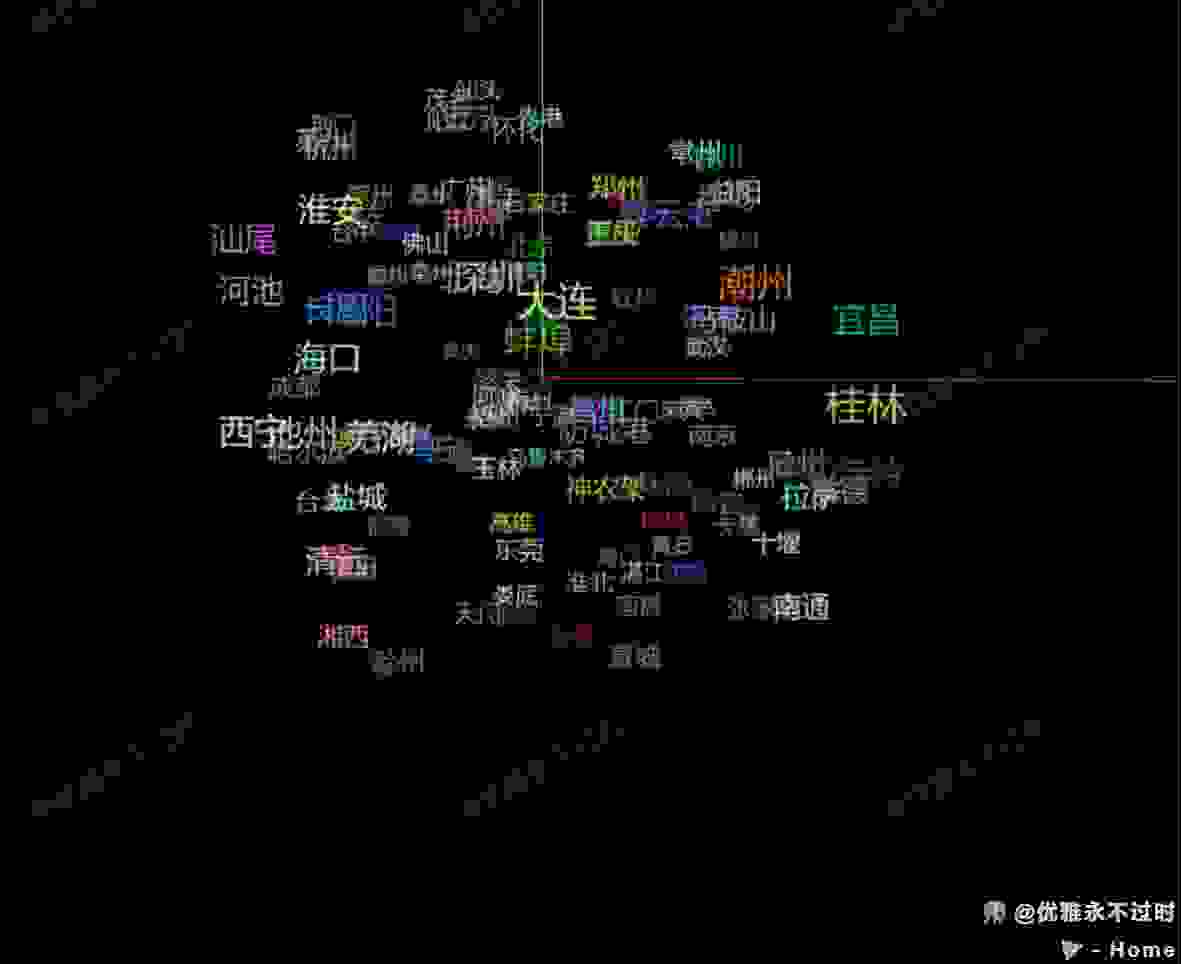
精灵文字
Sprite Text
你将学到什么
- 相机交互控制器
- requestAnimationFrame 渲染循环
效果说明
Three.js 业务向场景组合。
应用场景 · Three.js
核心概念
- OrbitControls 轨道旋转缩放;开
enableDamping时每帧需controls.update()。
实现步骤
- 搭建 Scene / Camera / Renderer 与 OrbitControls
- rAF 循环中 update 并 render
代码要点
createCanvasText()— 案例中的独立逻辑模块,建议在线编辑器中跳转阅读createBorder()— 案例中的独立逻辑模块,建议在线编辑器中跳转阅读
源码
js
import * as THREE from 'three'
import { OrbitControls } from 'three/examples/jsm/controls/OrbitControls.js'

const box = document.getElementById('box')

const scene = new THREE.Scene()

const camera = new THREE.PerspectiveCamera(75, box.clientWidth / box.clientHeight, 0.1, 1000)

camera.position.set(0, 10, 10)

const renderer = new THREE.WebGLRenderer()

renderer.setSize(box.clientWidth, box.clientHeight)

box.appendChild(renderer.domElement)

new OrbitControls(camera, renderer.domElement)

scene.add(new THREE.AmbientLight(0xffffff, 3), new THREE.AxesHelper(1000))

animate()

function animate() {

  requestAnimationFrame(animate)

  renderer.render(scene, camera)

}

window.onresize = () => {

  renderer.setSize(box.clientWidth, box.clientHeight)

  camera.aspect = box.clientWidth / box.clientHeight

  camera.updateProjectionMatrix()

}

const citys = await fetch('https://z2586300277.github.io/three-editor/dist/files/other/city.json').then(res => res.json()) // 获取城市数据

const updateCanvasText = createCanvasText({ dpr: 1.4 }) // 创建canvas

const getColor = () => '#' + Math.floor(Math.random() * 0xffffff).toString(16).padStart(6, '0') // 随机颜色

for (const key in citys) {

  const canvas = updateCanvasText({ text: key, color: getColor() })

  const texture = new THREE.TextureLoader().load(canvas.toDataURL())

  const material = new THREE.SpriteMaterial({ map: texture })

  const sprite = new THREE.Sprite(material)

  sprite.scale.set(canvas.width / canvas.height, 1, 1)

  // 设置随机位置
  sprite.position.set(
    Math.random() * 20 - 10,
    Math.random() * 20 - 10,
    Math.random() * 20 - 10
  )

  scene.add(sprite)

}

// 创建canvas文字方法
function createCanvasText(params) {

  const defaultParams = { dpr: 1, maxWidth: 100, fontSize: 20, color: 'white', fontFamily: 'serif', align: 'center', border: false, ...params } // 默认参数

  const { dpr, border, maxWidth, fontSize, align } = defaultParams

  const devicePixelRatio = window.devicePixelRatio * dpr

  // 准备 cnvas
  const canvas = document.createElement('canvas')

  canvas.width = maxWidth * devicePixelRatio

  canvas.height = fontSize * devicePixelRatio

  // 获取 2d 上下文
  const ctx = canvas.getContext('2d')

  ctx.imageSmoothingQuality = 'high'

  ctx.scale(devicePixelRatio, devicePixelRatio)

  // 创建边框
  function createBorder() {

    ctx.strokeStyle = '#fff'

    // 创建宽度为10px的边框
    ctx.lineWidth = 1 * devicePixelRatio;

    ctx.strokeRect(

      ctx.lineWidth / 2,

      ctx.lineWidth / 2,

      canvas.width / devicePixelRatio - ctx.lineWidth,

      canvas.height / devicePixelRatio - ctx.lineWidth

    )

  }

  // 创建文字
  const createText = ({ text, color, fontSize, fontFamily }) => {

    // 参数设定
    ctx.fillStyle = color || defaultParams.color
// ... 完整源码见在线案例编辑器
小结
应用场景 · Three.js