
帧率
Frame Rate & Stats
你将学到什么
Stats.js实时显示 FPS- 性能监视在开发流程中的位置
- 渲染循环 + Stats.update() 的标准写法
效果说明
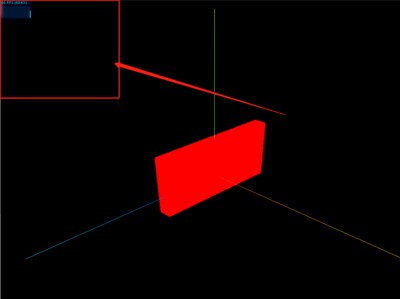
画面左上角(Stats 默认位置)出现 性能面板,显示当前帧率。场景为静态立方体 + rAF 循环。
核心概念
Three.js 内置示例常用的 Stats.js 提供三色面板:
| 面板 | 含义 | 切换 |
|---|---|---|
| FPS | 每秒帧数 | 默认 |
| MS | 每帧 CPU 耗时 | 点击切换 |
| MB | 内存占用 | 再点击 |
js
import Stats from 'three/examples/jsm/libs/stats.module.js';

const stats = new Stats();
document.body.appendChild(stats.domElement);

function render() {
    stats.update();  // 必须在 render 前调用
    renderer.render(scene, camera);
    requestAnimationFrame(render);
}
目标帧率: 桌面端 60 FPS;VR 需 90+;移动端 30~60 可接受。低于 30 用户会感知卡顿。
实现步骤
- 引入 Stats,append 到 DOM
- rAF 循环内
stats.update()→render
代码要点
js
const stats = new Stats();
document.body.appendChild(stats.domElement);

function render() {
    stats.update();
    renderer.render(scene, camera);
    requestAnimationFrame(render);
}
render();
进阶工具
Chrome Performance 面板、Three.js renderer.info(draw calls / triangles)、帧率控制案例 中的限帧策略。
源码
js
import * as THREE from 'three';
import Stats from 'three/examples/jsm/libs/stats.module.js';

const scene = new THREE.Scene();
const geometry = new THREE.BoxGeometry(10, 60, 100);
const material = new THREE.MeshBasicMaterial({ color: 0xff0000 });
const mesh = new THREE.Mesh(geometry, material);
mesh.position.set(0, 10, 0);
scene.add(mesh);

const axesHelper = new THREE.AxesHelper(150);
scene.add(axesHelper);

const camera = new THREE.PerspectiveCamera();
camera.position.set(200, 200, 200);
camera.lookAt(0, 10, 0);

const renderer = new THREE.WebGLRenderer();
const box = document.getElementById('box');
renderer.setSize(box.clientWidth, box.clientHeight);
box.appendChild(renderer.domElement);

const stats = new Stats();
document.body.appendChild(stats.domElement);

function render() {
    stats.update();
    renderer.render(scene, camera);
    requestAnimationFrame(render);
}
render();
小结
- 开发阶段 始终开 Stats,上线前移除
- 下一篇:全屏 — 窗口 resize 与相机 aspect
入门案例 · Three.js · 14/15